Image Source: iJunkie
Introduction
With iOS 16, Apple introduced Widgets to iPhones. Taking advantage of this new feature, many third-party apps have started launching their widgets for iOS 16. Now, YouTube has become the latest name to add home screen widgets for iPhones.
In this post, we’ll talk about the YouTube Widget on iPhone. We’ll also explain how to add YouTube Widget to the iPhone home screen. So, without any further ado, let’s get started.
YouTube Widget on iPhone
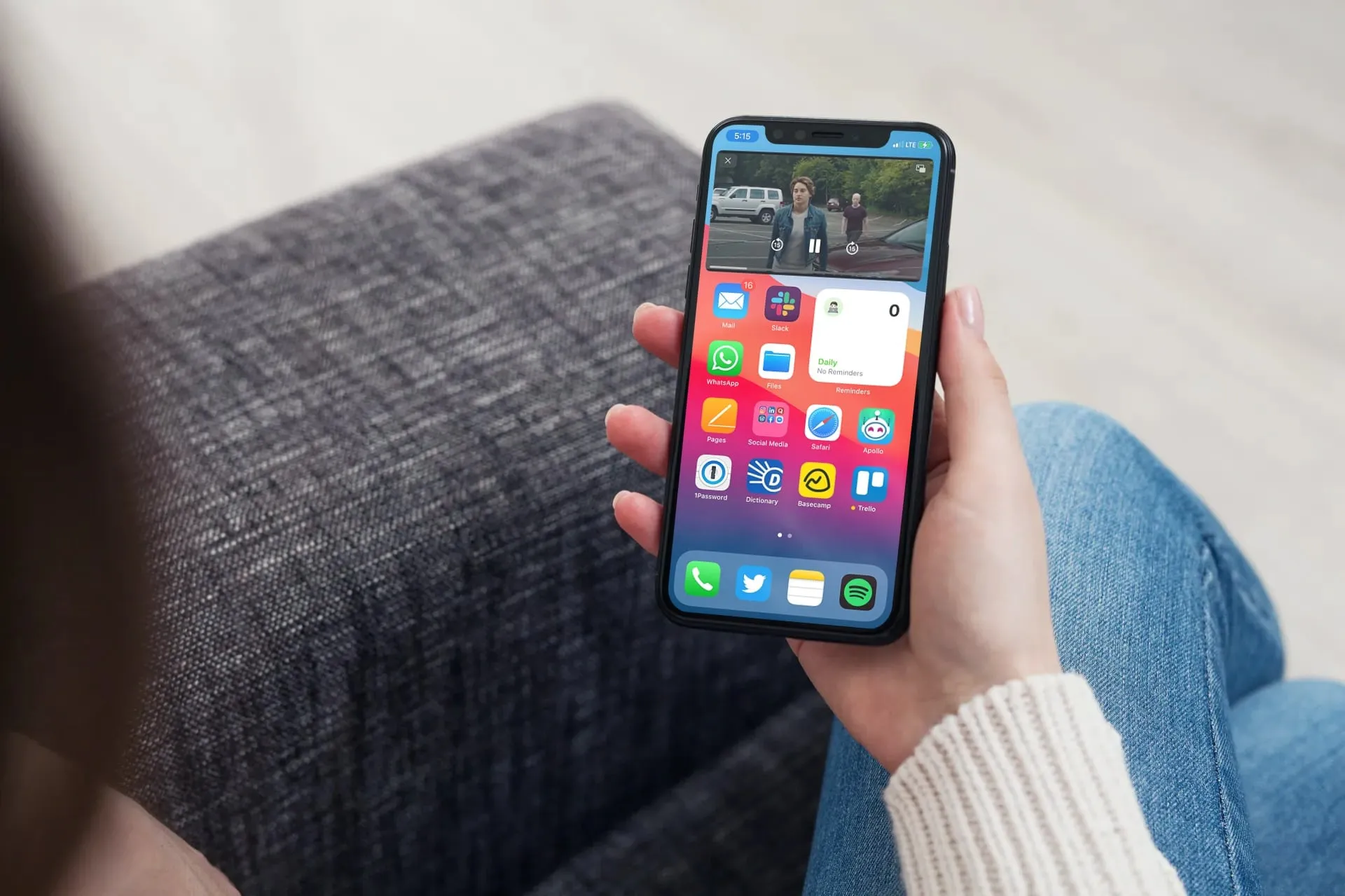
 Image Source: Future
After Google apps like—Chrome, Gmail, Google Maps, and more, YouTube becomes the latest app to get a home screen widget for iOS 16. The Widget for YouTube is available in two different versions. Moreover, both widgets provide a quick and easy way to browse YouTube on the iPhone.
Search
The first YouTube widget is called Search. It just features a quick text entry box on its 2x2 body. In addition, the widget offers black or white background based on the system theme.
Quick Action
YouTube's second widget is named Quick Actions. This option features more options like—Home, Shorts, Subscriptions, Search Box, and Microphone for voice lookup. In fact, Quick Action is the fastest way to search and browse YouTube on an iPhone.
How to Add YouTube Widget to iPhone Home Screen?
The process to add home screen widgets on iPhone is very simple. However, your iPhone must support the latest version of iOS 16, and the YouTube app should have the version 17.40.5 update.
To check the YouTube version, you can simply tap on your YouTube profile picture>Settings>and About. After you have updated to the latest iOS and YouTube versions, just follow these simple steps to add YouTube Widget on your iPhone:
- Step 1: Long press on the empty spot of the home screen
- Step 2: When the screen starts jiggling, type YouTube on the Search Widgets
- Step 3: Long press the widget you want and drag it to an empty spot on the home screen
- Step 4: Tap “Done”
Conclusion
Here, we’ve talked about the YouTube Widget on iPhone that provides a quick way to browse YouTube on the iPhone. We’ve also explained how to add YouTube Widget to the iPhone home screen. I hope you found the article helpful.
-original.webp)
-original.webp)
-original.webp)
-original.webp)