Introduction
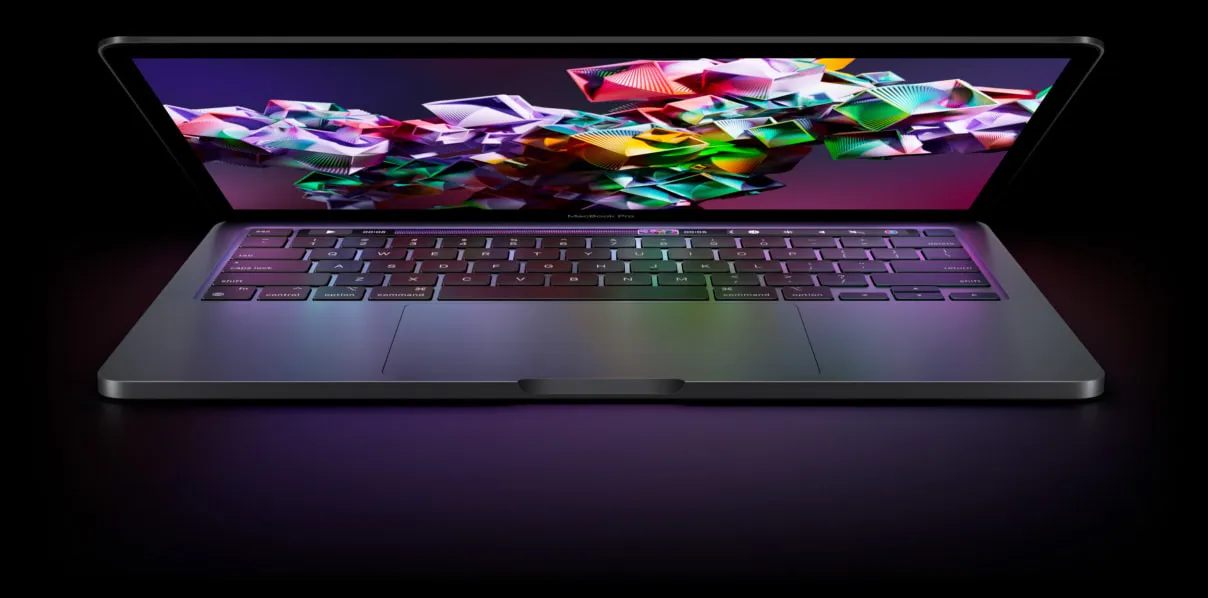
Apple MacBooks are the most expensive laptops money can buy. So, after purchasing one, you want to keep them nice and clean. Seriously, fingerprints and smudges on a multi-thousand dollars laptop don't feel right. However, Apple MacBooks are extremely delicate, and you must be extra careful while cleaning one.
So, to keep your MacBook nice and shiny, Here’s a full guide on how to clean MacBook Pro Screen. Here, we’ve mentioned the steps to clean the screen. Similarly, we’ve also included some crucial factors to consider before cleaning Apple manufactured display. So, go through the article to know the perfect way of cleaning a MacBook Pro screen.
Things To Know Before Cleaning MacBook Pro Screen
Image Source: Getty Images
Before learning how to clean MacBook Pro Screen, let's understand some important factors that can ruin your MacBook display. Apple themselves provides these warnings, so be extra careful about this stuff.
- Don’t Use Acetone Cleaners: Acetone is a liquid solvent that breaks and dissolves other substances. You can find acetone in products like paint remover and nail polish remover. Moreover, Apple warns users not to use the cleaners based on acetone.
- Don’t Use Hydrogen Peroxide Cleaners: Like acetone, Apple warns users not to use the Hydrogen Peroxide based cleaners. Hydrogen peroxide is water with an extra oxygen molecule. People use this chemical to bleach hair, disinfect tools, and more.
- Don’t Use Other Cleaners Like - window cleaners, household cleaners, aerosol sprays, solvents, ammonia, or abrasives.
- Don’t Spray Cleaner Directly on Screen: The chance of cleaners dripping inside the display is why Apple warns users not to spray the screen directly.
- Shut Down Your Mac and Disconnect the Power: This one is relatively self-explanatory. You wouldn’t like to suffer any electrical injuries while cleaning the Mac.
How to Clean MacBook Pro Screen: Full Guide
With all the warnings out of the way, here’s a full guide on how to clean MacBook Pro Screen:
- Step 1: Turn off the MAC and disconnect it from the power source.
- Step 2: Next, use a microfiber cloth to wipe dust and lint.
- Step 3: For smudges and fingerprints, dampen the microfiber cloth with water and gently wipe the screen. However, avoid moisture from getting into openings.
- Step 4: Use 70% isopropyl alcohol (IPA) solution for hard-to-remove smudges. Like step 3, dampen a microfiber cloth with the solution and gently wipe the screen.
- Step 5: Let the moisture dry before plugging or powering the MacBook.
How to Clean Nano-Texture Glass
Most Apple displays use a nano-texture glass screen. So while cleaning, the company suggests using only the polishing cloth that comes with such screens. Moreover, the cleaning process of nano-texture glass is the same as we mentioned above.
Conclusion
To summarize, Apple displays are costly and delicate. So, while cleaning it, we have to be extra cautious.
Here, we provided a full guide on how to clean MacBook Pro Screen. Similarly, we also mentioned the steps and some crucial factors to consider before cleaning Apple manufactured display. I hope you’ll find the article helpful.