Image Source: Android Central
Introduction
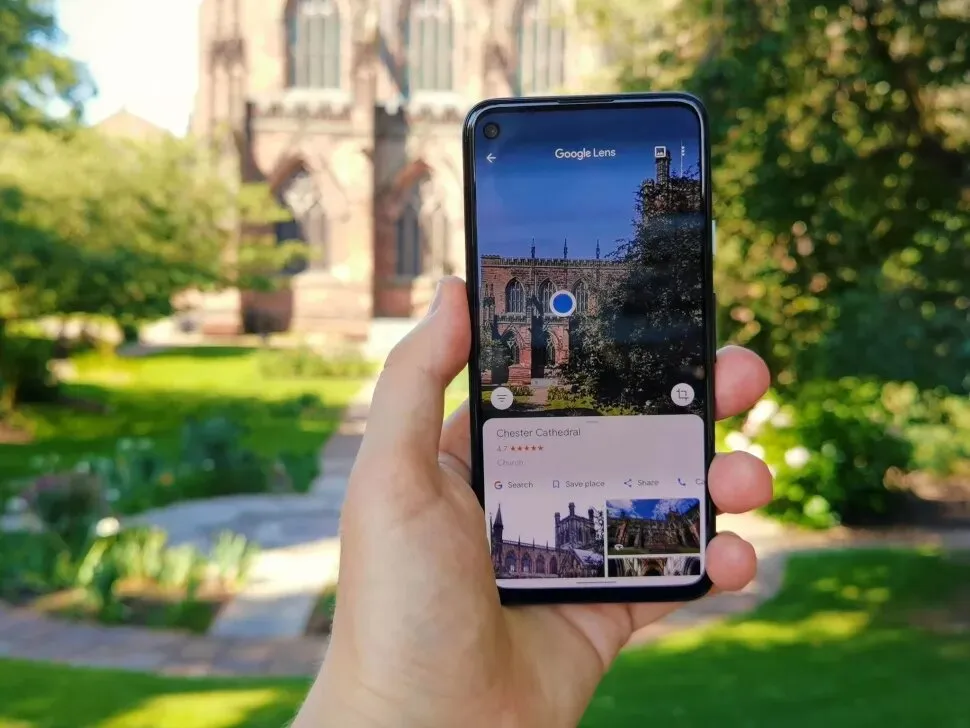
Google Lens is an image recognition technology that identifies objects using visual analysis based on a neural network. In simple words, Google Lens will give you relevant information about any object just by pointing your phone's camera to the thing you want to know more about.
Moreover, It was first announced on 2017 by Google, and these days, every Android phone comes with a standalone Google Lens app or gets integrated into the Camera app. You can also access Google Lens on your iPhone via Google App.
Google Lens is one of the most useful features to have in your smartphone. But today, we'll not talk about all the cool features of Google Lens. Instead, in this post, we'll show you how to see Google Lens history and delete it. So, let's get started.
How to See Google Lens History??
To see your Google Lens history, just follow these easy steps mentioned below:
- Step 1: Open the Google Lens activity page from Google’s MyActivity page
- Step 2: Sign in using your Google account
- Step 3: Select Activity controls or Filter by date & product section
- Step 4: Tap on the Google Lens icon
Google MyActivity page will allow you to view and delete all your activity performed in any Googe services like - Google Search, Ads, Drive, Gmail, Play Store, and more.
How to Delete Google Lens History??
You'll see your activity history when you go to the Lens section of the MyActivity page. On the side of your every activity, you’ll see an ‘X’ option, which, if you click, will let you delete that particular search history. Moreover, you can also apply filters to delete multiple search histories at once.
The filter lets you delete your search history by group, date, and date range.
Conclusion
Just by pointing your phone's camera to particular objects, Google Lens can show you many details regarding that object. It even allows you to live translate text, identify a particular piece of clothing, and more. It is one of the most powerful and useful tools that’s in your smartphone.
In this post, we’ve shown you how to see Google Lens history and delete it. I hope you found the article helpful.